Sage X3® connects to QAP through an API connection. To do this:
- Go to Settings | ERP Management.
Select the legal entity from the Legal Entity list.
Select Sage X3® from ERP Properties.
Click Save.
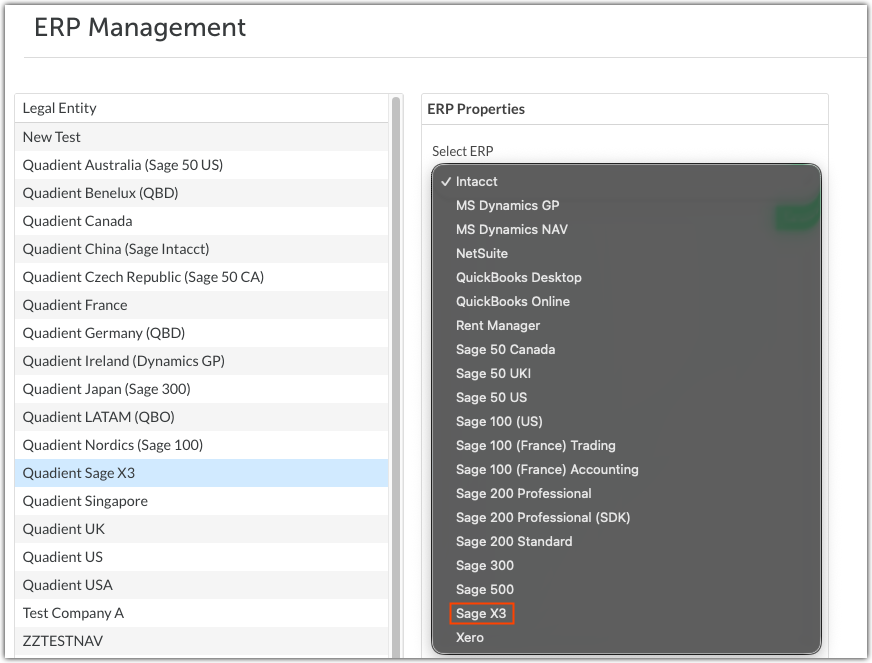
After selecting Sage X3®:
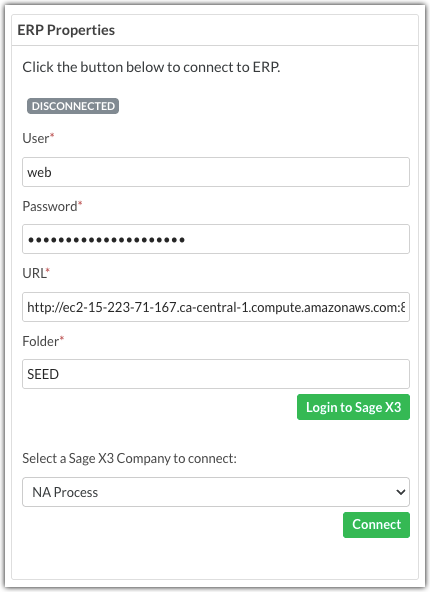
- Enter the following information in ERP Properties:
- User/Password: The Sage X3® web user name and password.
- URL: The URL for your Sage X3® instance. For security purposes, QAP only accepts HTTPS certified endpoints.
- Folder: The Sage X3® endpoint folder.
Click Login to Sage X3 and verify the connection.
Select a company from the dropdown list, and click Connect.
Please note that each Sage X3® company requires its own legal entity in QAP.
Run a full sync to import all data from Sage X3® into QAP. The following lists are imported from Sage X3®, along with any analytical dimensions you use:
AP Account
Currency
G/L Account
Invoice Type
Item
Location
Payment Term
Purchase Type
Site
Tax
Tax Rule
Tax Code 1/2/3
Unit Measure
Vendor
Was this article helpful?
That’s Great!
Thank you for your feedback
Sorry! We couldn't be helpful
Thank you for your feedback
Feedback sent
We appreciate your effort and will try to fix the article