Note: Vendor settings are transitioning from List Management to Vendors. If you do not have access to the Vendors tab yet, you can access all vendor-related settings in List Management.
The Profile tab shows the following information about a vendor based on the ERP mapping:
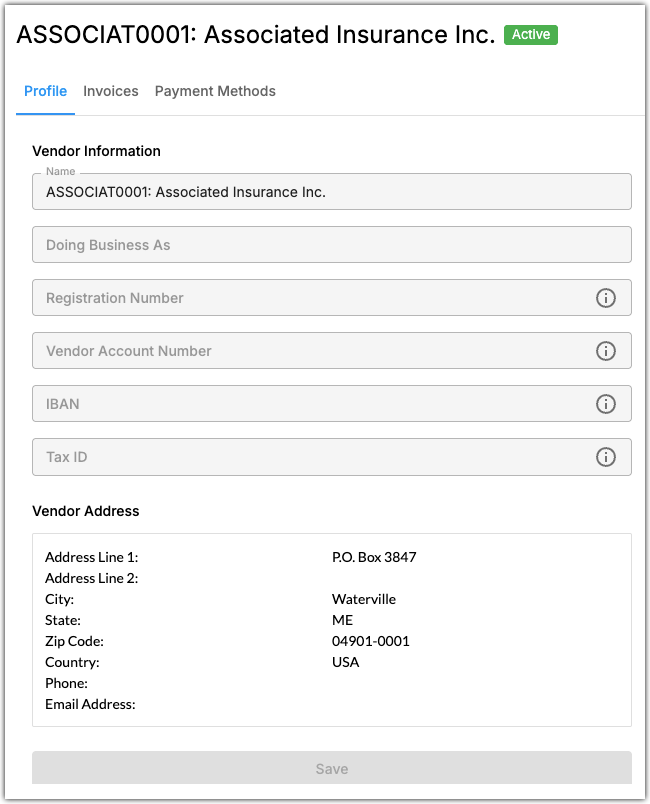
- Name - The vendor’s name.
- Doing Business As - The vendor’s Doing Business As (DBA) name.
- Registration Number - The vendor's registration number.
- Vendor Account Number - The vendor's account number. If this field is present, it will be printed in the check reference field on SmartPayables cheque payments.
- IBAN - The vendor's International Bank Account Number (IBAN).
- Tax ID - The vendor'd Tax ID.
- Vendor Address - The vendor's full address, phone number, and email address.
Fields such as IBAN may be visible in QAP, despite not being required in your geographic location.
If available, the following fields may be used for invoice matching or for vendor verification purposes:
Registration Number
IBAN
Tax ID
Invoices
The Invoices tab shows the following settings for a vendor:
- Payment Terms
- SmartCapture
Payment Terms
Here you can view the following payment terms that are imported from your ERP system:
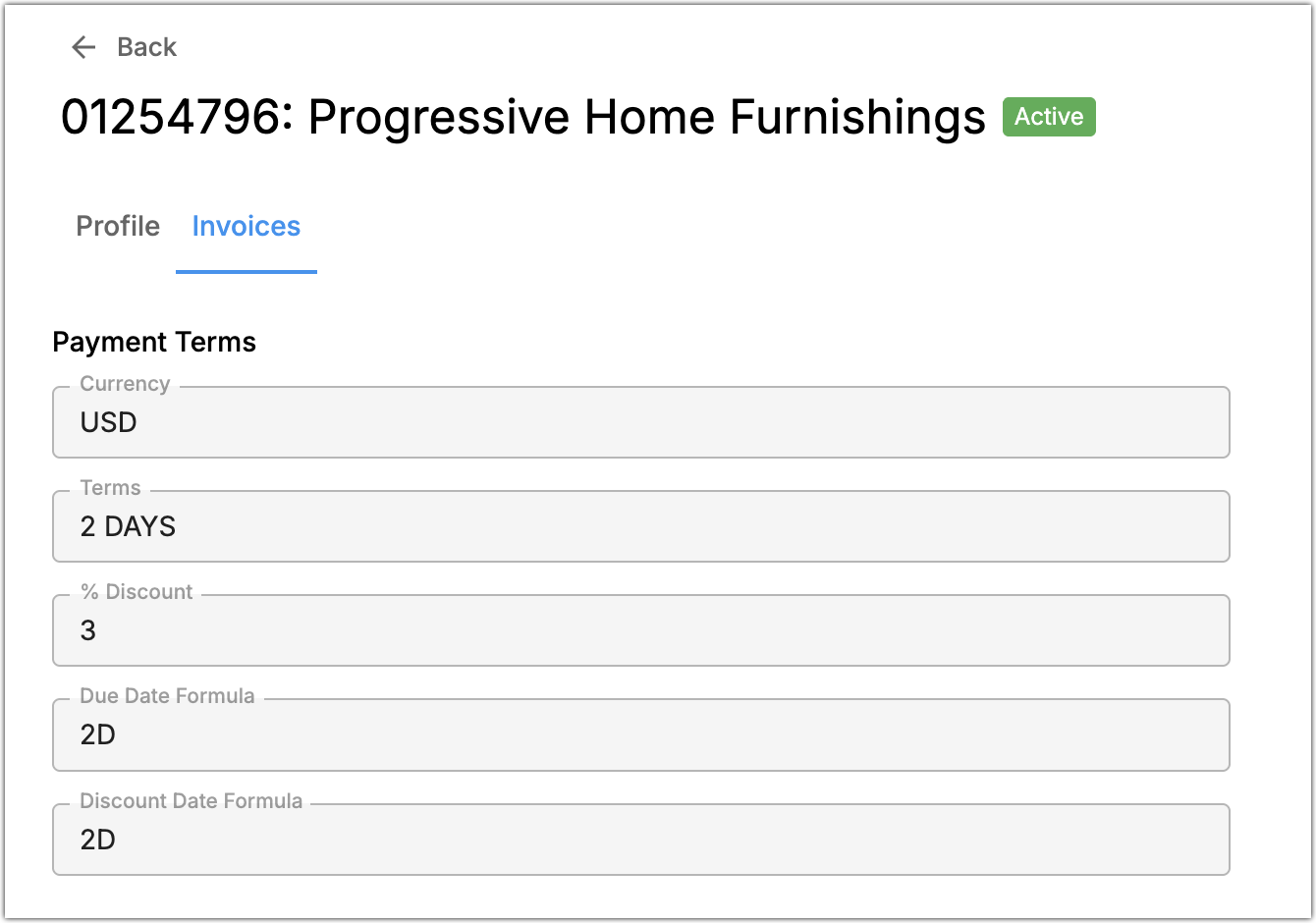
- Currency - The vendor's preferred currency for payments.
- Term - The vendor's required payment time.
- % Discount - The percentage of discount applied if an invoice is paid on or before the discount date.
- Due Date Formula - How an invoice's due date is calculated.
- Discount Date Formula - How an invoice's discount date is calculated.
Payment terms other than Currency are only available for the following ERP systems:
- Dynamics NAV®
- QuickBooks Desktop®
SmartCapture
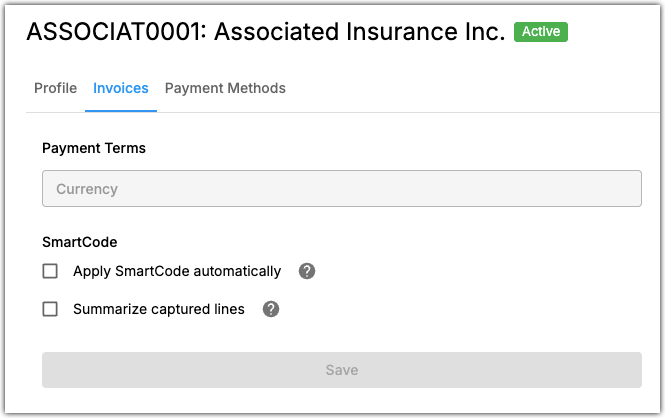
Here you can configure the following SmartCapture settings:
- Apply SmartCode automatically
- Summarize captured lines
Applying SmartCode Automatically
Select this option to code line item fields that cannot be captured by SmartCapture, such as GL Account, Item, Unit of Measure, etc. using SmartCode.
Summarize Captured Lines
By default, SmartCapture's line item capture codes each invoice line separately. The summarize captured lines feature summarizes multiple invoice lines into one line. To do this:
- Check Summarize captured lines.
- Enter the description for the summarized line.
- Click Save.
Was this article helpful?
That’s Great!
Thank you for your feedback
Sorry! We couldn't be helpful
Thank you for your feedback
Feedback sent
We appreciate your effort and will try to fix the article