Vendors are typically onboarded for a payment method when the payment method is first enabled. In certain cases, you may need to manually enable or disable payments for vendors.
How to enable a vendor for payments
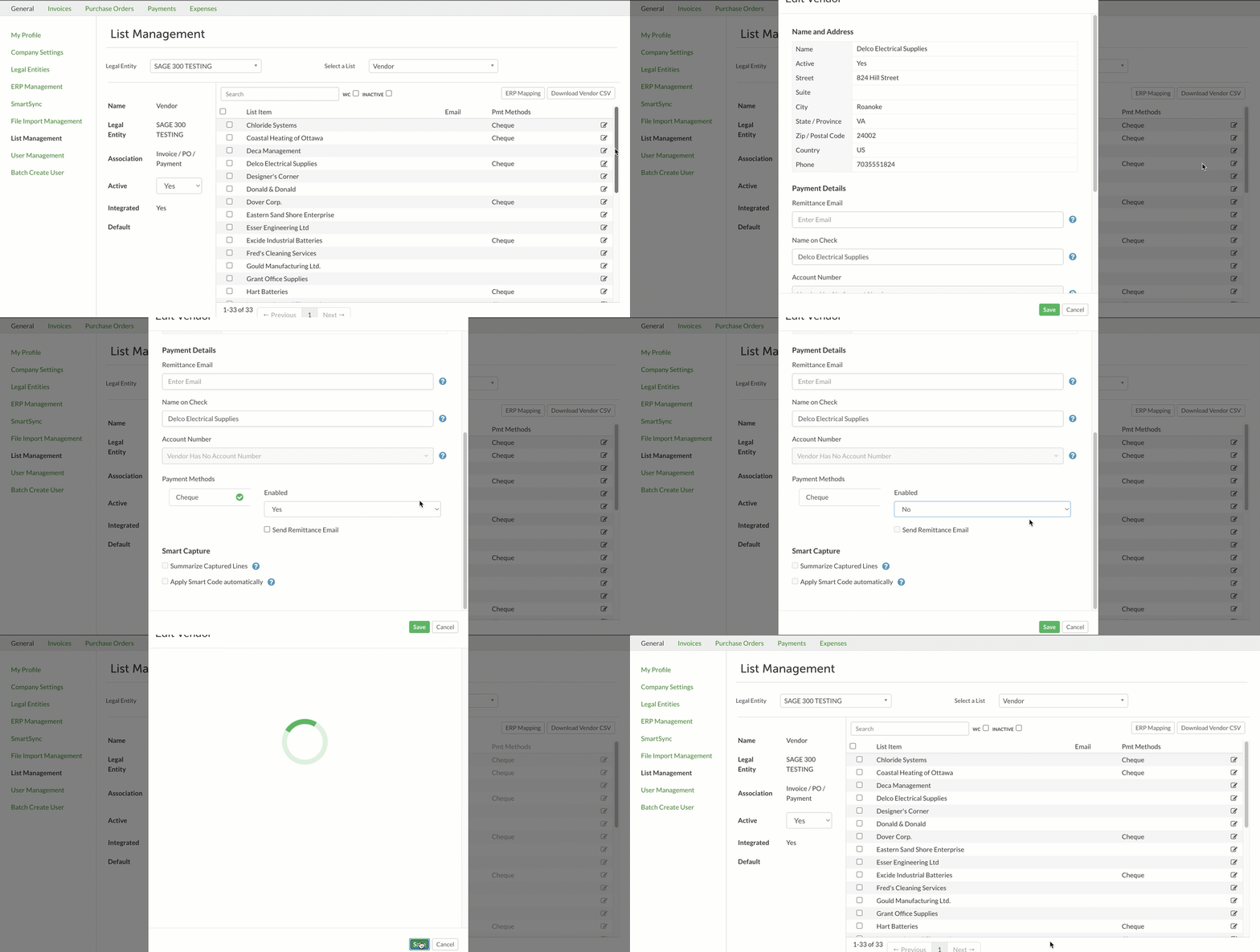
In Settings, navigate to List Management. Select the right Legal Entity, and select the Vendor list. Locate the vendor, and click on the Edit Vendor button. Scroll down to Payment Methods, and select a payment method. If you only have one payment method enabled, it will be selected by default.
Under the Enabled Menu, toggle from No to Yes. You must confirm that the vendor address is correct before clicking Save. Click Save to onboard the vendor for payments.

How to Disable a Vendor for Payments
In Settings, navigate to List Management. Select the right Legal Entity, and select the Vendor list. Locate the vendor, and click on the Edit Vendor button. Scroll down to Payment Methods, and select a payment method. If you only have one payment method enabled, it will be selected by default.
Under the Enabled Menu, toggle from Yes to No. Click Save to offboard the vendor from payments.
Vendors can not be disabled from payments while they have payments in the following statuses:
- In Progress
- Rejected
- Reset
- Pending Approval
- Approved
The payments must be deleted before the vendor can be offboarded for payments. If you attempt to disable a vendor while they have payments in the above statuses, you will receive the below error message:

Was this article helpful?
That’s Great!
Thank you for your feedback
Sorry! We couldn't be helpful
Thank you for your feedback
Feedback sent
We appreciate your effort and will try to fix the article