Invoice Approvers and Super Approvers can see all invoices currently waiting on their approval in the Pending Approval tab. Here, invoices can be:
- Approved.
- Rejected.
- Approved or rejected in batches.
View Pending Approval Invoices.
Users will only see invoices in the Pending Approval tab if they:
- Have the invoice approver role.
- Have invoices pending their approval.

Other users can view pending invoices by filtering by Pending Approval status in the In Progress or All tabs. 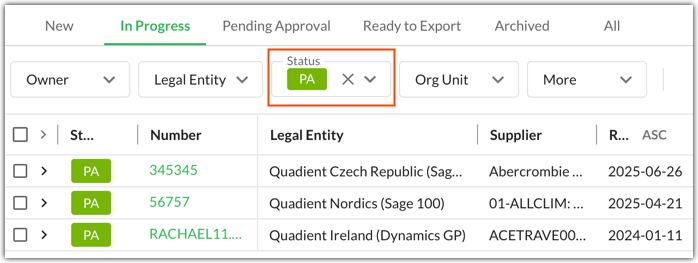
Approving Invoices
To approve an invoice:
- Click into the invoice details view.
- Review the coding.
- Click Approve. Click on the arrow icon beside Approve to use the Approve with a comment feature. This allows you to leave a comment alongside your approval.
Users with the Super Approver role can make some coding changes to the invoices while it is in Pending Approval status. You can learn more about the Super Approver role here.

If there are multiple approvers in the workflow, the invoice will stay in Pending Approval status until approved by all approvers. If not, the invoice moves to Approved in the Ready to Export tab. Click on the thumb icon to see who else needs to approve the purchase order.

Rejecting Invoices
- Click into the invoice details view.
- Review the coding.
- Click Reject.
You must leave a comment when rejecting the invoice to explain why it was rejected. The invoice moves back to the In Progress tab in Rejected status.

Batch Approving or Rejecting Invoices
In the tab view, invoices can be approved or rejected in batches. To do this:
Select multiple invoices.
Click Approve or Reject to approve or reject all selected invoices.

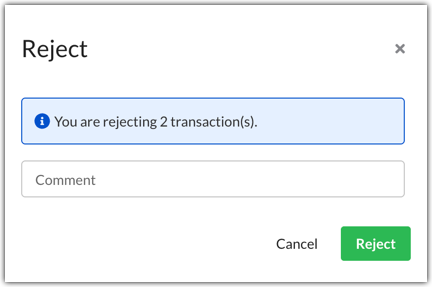
When rejecting invoices in batches, the same comment is left on all invoices.
Was this article helpful?
That’s Great!
Thank you for your feedback
Sorry! We couldn't be helpful
Thank you for your feedback
Feedback sent
We appreciate your effort and will try to fix the article