QAP supports importing tax codes from Xero®. Tax can be calculated as inclusive or exclusive of the invoice total.
Tax Exclusive
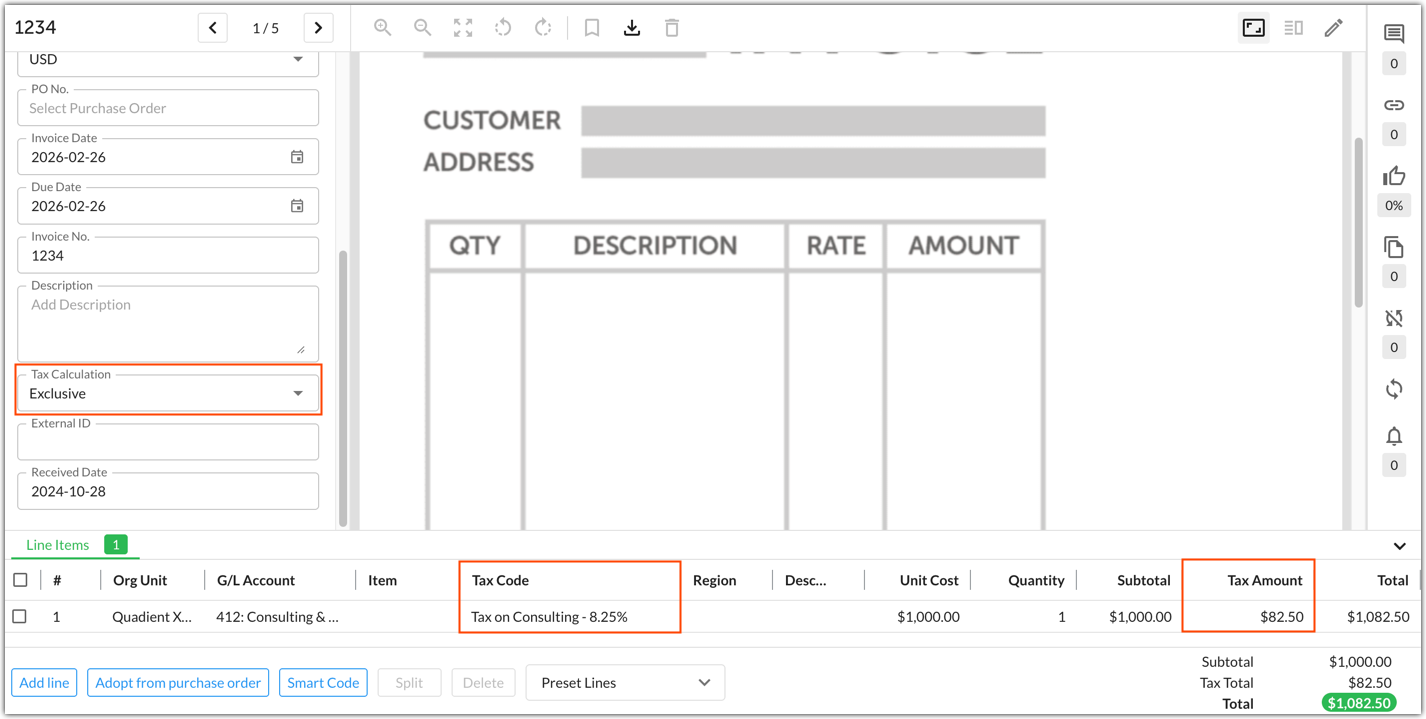
In this workflow, tax amounts are auto-calculated based on the tax code. The tax amount is then added to the subtotal to make the invoice total. To do this:
- Set Tax Calculation as Exclusive.
- Select a Tax Code.
- Code the Subtotal and the Tax Amount will automatically populate.
In this example, the Tax Amount is automatically coded as $82.50 based on the Tax Code Tax on Consulting - 8.25%.
Tax Inclusive
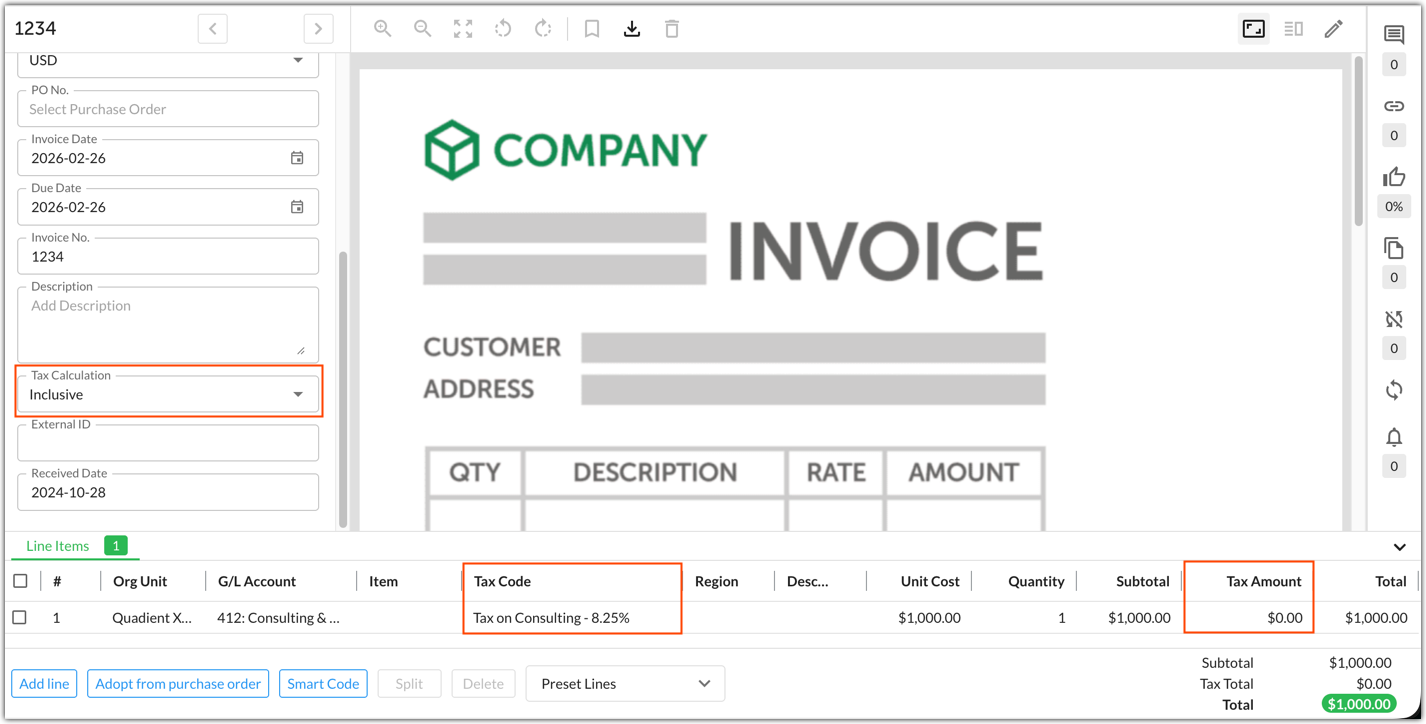
In this workflow, the tax amount is included in the invoice subtotal. To do this:
- Set Tax Calculation as Inclusive.
- Select a Tax Code.
- Code the Subtotal.
In this example, the Tax Amount field is $0.00 as the Tax Calculation is set as Inclusive.
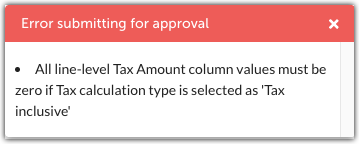
Please note that coding a tax amount when using the inclusive tax workflow will result in an error when submitting invoices for approval.
Was this article helpful?
That’s Great!
Thank you for your feedback
Sorry! We couldn't be helpful
Thank you for your feedback
Feedback sent
We appreciate your effort and will try to fix the article