The Acumatica® and QAP connection can also be managed directly in Quadient Hub. Both Quadient Hub and QAP include integration settings, so you can configure the connection from either application. For more details and a full description of all sync options, see the Quadient Hub Administration Guide.
Customers not using Quadient Hub will not be able to integrate with Acumatica®.
Acumatica® connects to QAP through an API connection used by Quadient Hub. To connect the two systems:
Go to Settings | ERP Management
Select the legal entity from the Legal Entity list.
Select Acumatica® from ERP Properties.
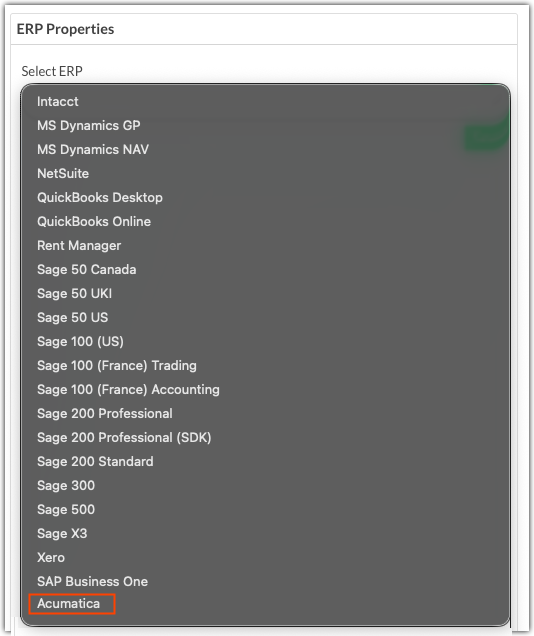
Click Save.
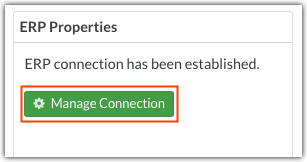
Click Manage Connection.
Enter the following information in the Manage Connection: Acumatica dialog:
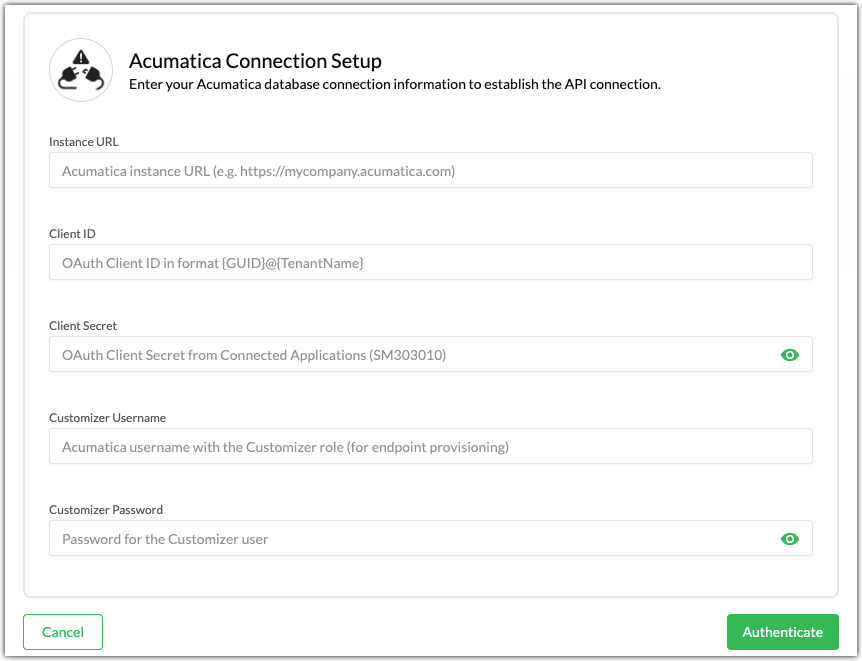
Instance URL - Acumatica® instance URL.
Client ID / Client Secret - Acumatica client ID and secret values. In Acumatica® go to Integrations | Connected applications to find these values.
Customizer Username / Customizer Password - The username and password of the Customizer user.
Click Authenticate.
In the pop-up window, grant the following access permissions:
Access to Web Services API
Offline Access
If you are not already logged in to Acumatica® , you will be redirected to the log in page. Log into Acumatica® to establish the API connection to QAP.
Syncing Acumatica® with QAP
To sync Acumatica® with QAP:
- Once connected, click Manage Connection to open the Connection Details dialog:
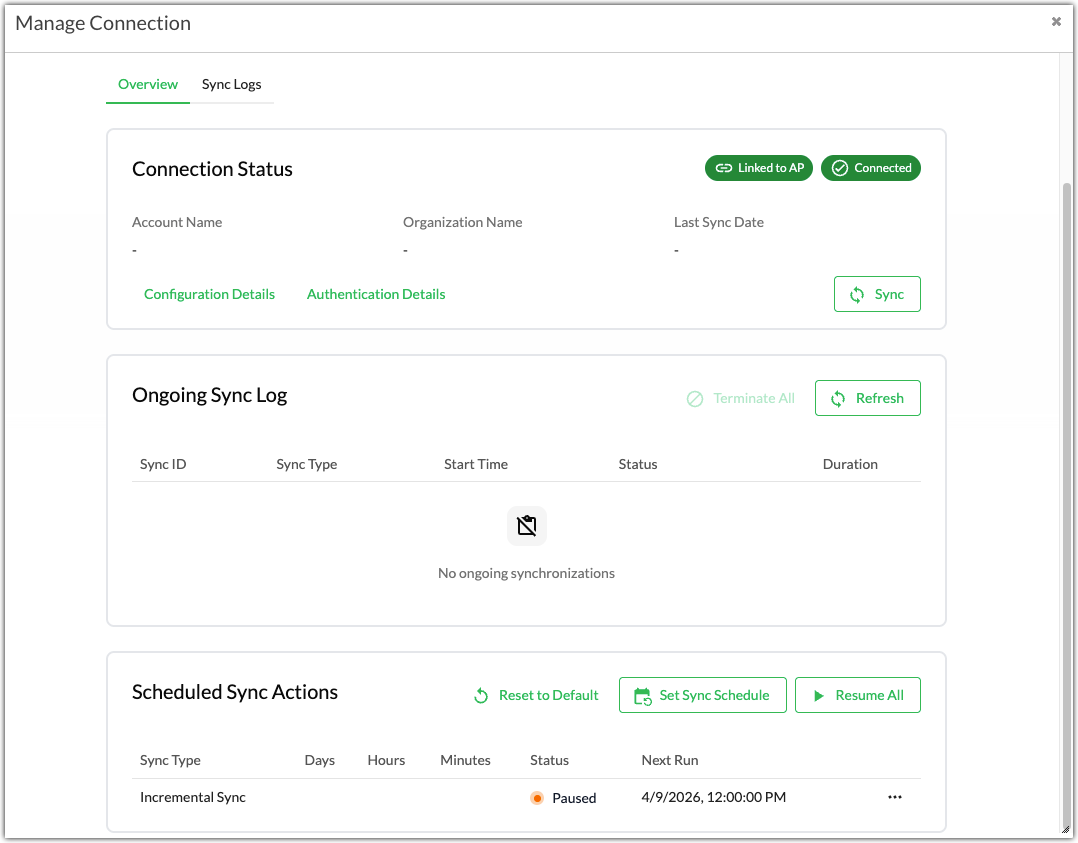
Click Sync to open the Manual Sync dialog.
- Select from one of the following sync types:
- Initial Full Sync - Syncs all lists, list items, and purchase order/receivings data. Run this sync when you first connect the two systems.
- Incremental Sync - Syncs all data for one or more lists.
- Full Entity Sync - Syncs all data for one or more lists that have been updated since the Start Date.
Click Start Sync.
The following lists are imported from Acumatica®:
Branch
Currency
Entity Currency
G/L Account
Item
Project
Project Task
Tax Code
Tax Group
Terms
Vendor
Was this article helpful?
That’s Great!
Thank you for your feedback
Sorry! We couldn't be helpful
Thank you for your feedback
Feedback sent
We appreciate your effort and will try to fix the article