Invoices that fail to sync to your ERP system will change to Sync Error status in the Ready to Export tab. In a transaction, click Error to show the full error message.
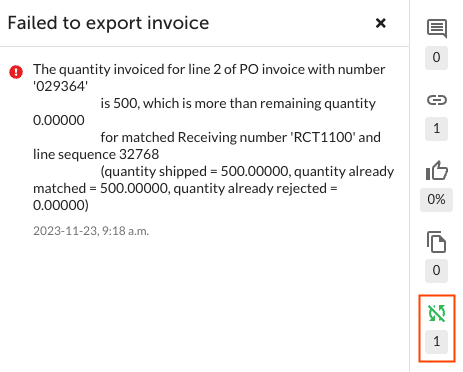
Depending on the type of error, it can be resolved in one of the following ways:
Mark the Invoice as Exported
Some sync errors do not need to be synced again to fix, such as a duplicate invoice error for an invoice already in your ERP. Use the Mark Invoice as Exported option under Actions in the invoice view to move the invoice to the Archived tab in Exported status.
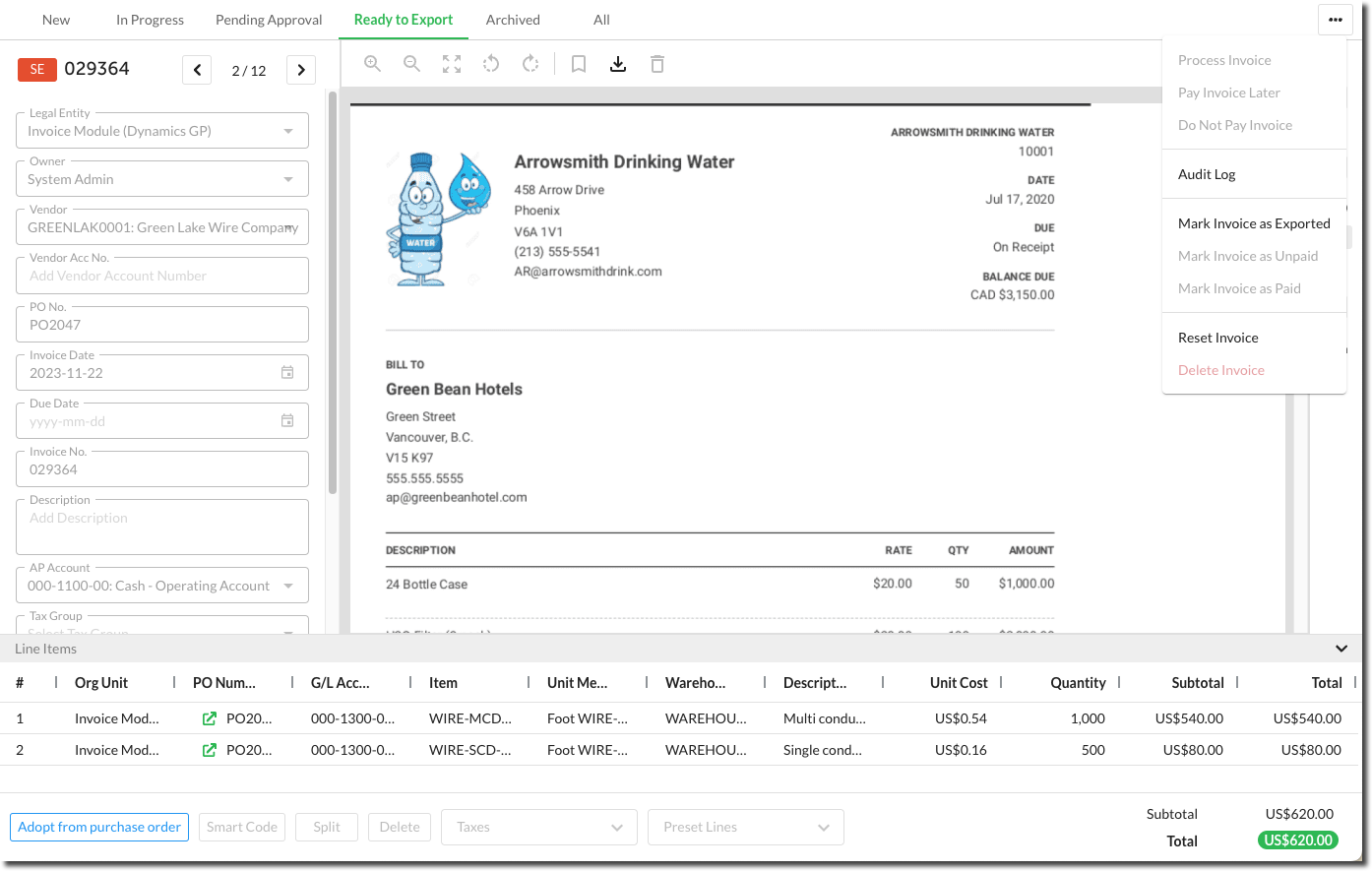
Reset the Invoice
If the invoice needs to be corrected, for example, if it is missing the GL account, reset the invoice using the Action drop-down in the details view. The invoice coding must be updated and approved before it can be exported again. Follow our guide here to reset the invoice.
Re-export the Invoice
Invoices can go into Sync Error status if the sync failed due to an ERP connection issue. In this case, the invoices don't require any changes and will need to be exported again. Select the invoices in Sync Error status that need to be re-exported, and click Export.

Was this article helpful?
That’s Great!
Thank you for your feedback
Sorry! We couldn't be helpful
Thank you for your feedback
Feedback sent
We appreciate your effort and will try to fix the article