QAP supports importing purchase orders from certain ERP systems. In this workflow, purchase orders created in your ERP system are imported to QAP and matched to invoices.
To import purchase orders to QAP, first contact your Customer Success Manager. They will enable any necessary backend settings for your company and advise you of the necessary ERP requirements, which can be found here:
Once connected, purchase orders are imported to QAP using SmartSync. When running a sync, enable the PO & Receiving Sync From Date option. Select the creation date of the oldest purchase order in your ERP system to ensure all purchase orders are imported.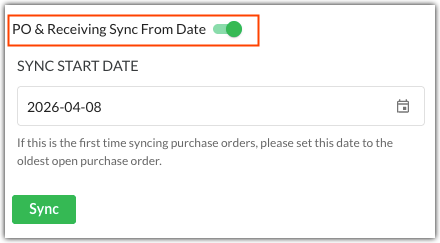
In the transaction view, the IMPORTED FROM ERP banner indicates imported purchase orders.
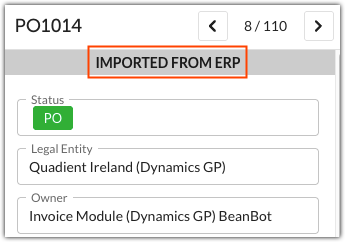
Imported purchase orders are matched to invoices in the same manner as purchase orders created in QAP. Instructions for doing this can be found here.
Receivings
Receivings are imported as part of the purchase order data for certain ERPs. They are indicated by one of two truck icons:
- Red Truck - Receivings data for the entire purchase orders.
- Grey Truck - Partial receivings data for the purchase order.
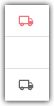
Click on either Icon to open the Receivings view, which shows the following information:
- Purchase order coding.
- Receipt data, including the quantity received (Qty Rec'd) and the quantity invoiced (Qty Inv).
- Click Cancel to exit the receivings view.
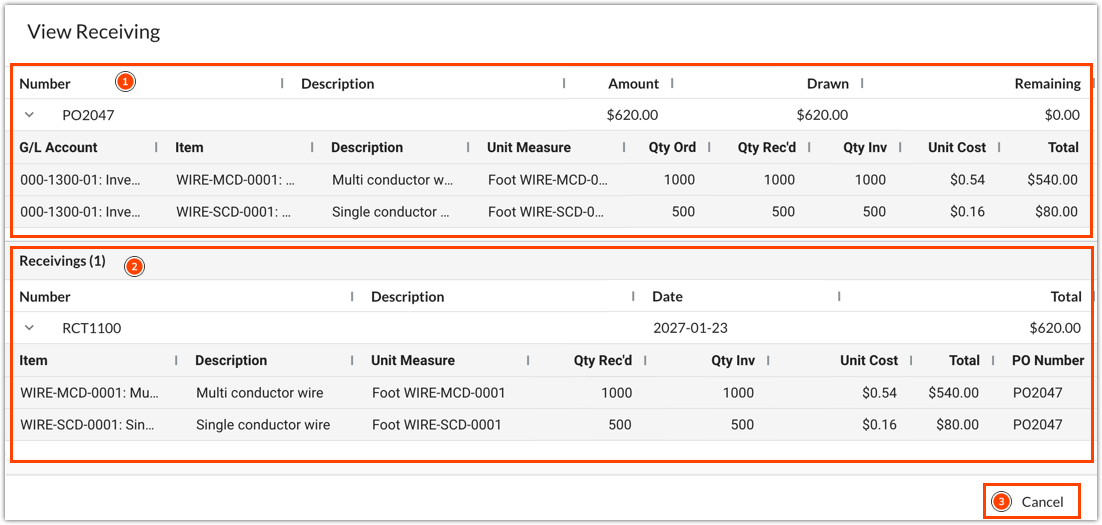
Tip: Depending on your ERP system, you might have multiple receipts for one purchase order. Use the Number column to tell the receipts apart.
Was this article helpful?
That’s Great!
Thank you for your feedback
Sorry! We couldn't be helpful
Thank you for your feedback
Feedback sent
We appreciate your effort and will try to fix the article