List Relationships allows you to create associations between lists, so that items you select in one list affect the items available in another.
In the Quadient Nordics (Sage 100) legal entity, the relationship between the G/L Account and Division lists allows you to select which Division items are available to be coded when specific G/L Account items are selected.
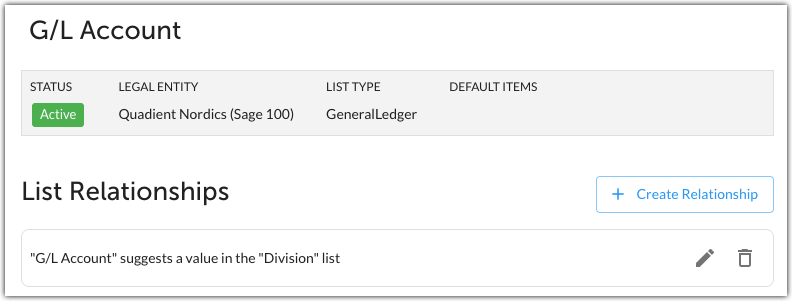
Creating List Relationships
To create list relationships:
- Select the list you want to trigger the relationship. For example, if you want to filter Division list items based on the G/L Account coded to an invoice, select G/L Account.
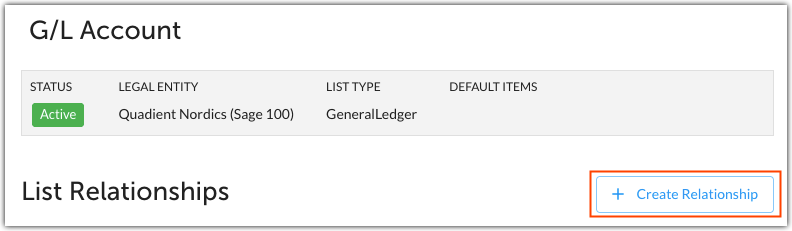
- Click Create Relationship.
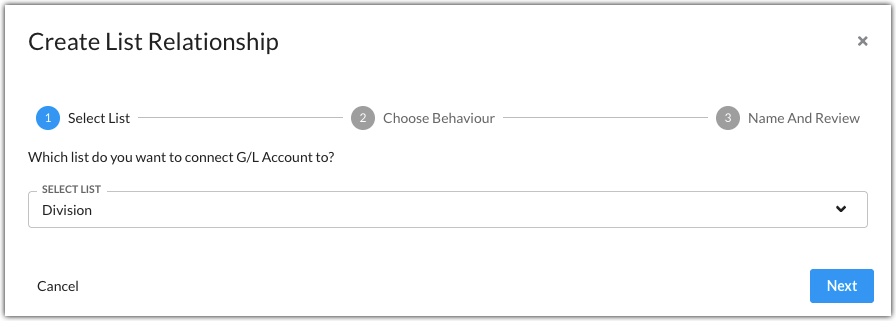
- Select the list you want to create a relationship with.
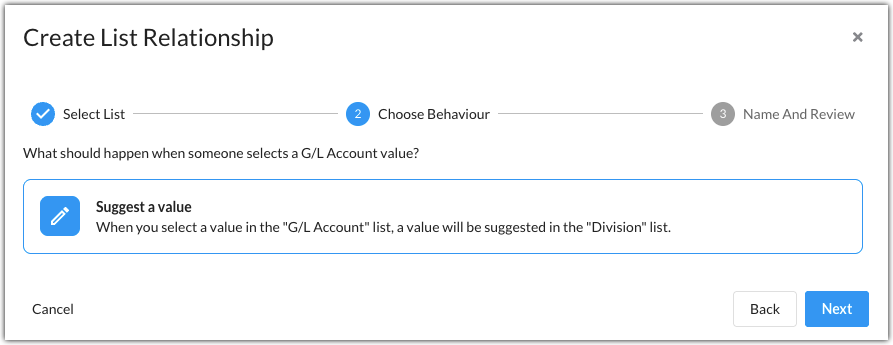
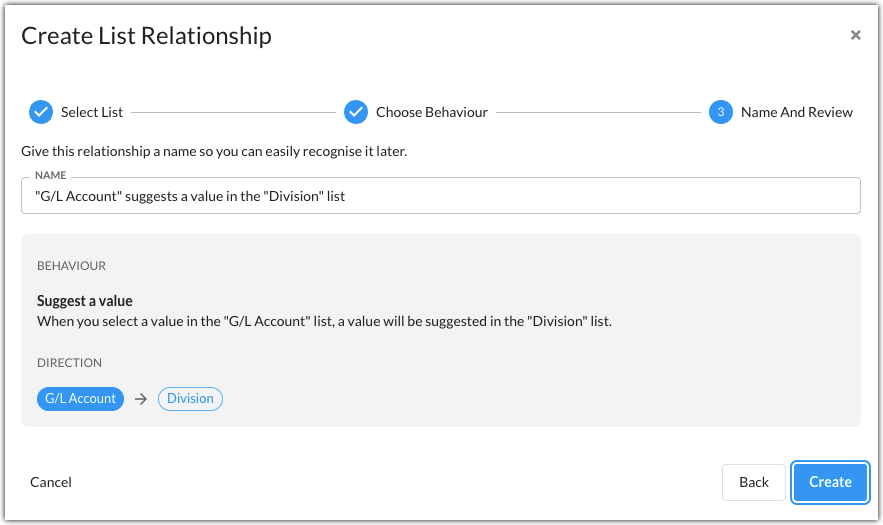
- Choose the relationship behaviour. Suggest a value is the only behaviour currently available.
- Review the relationship and click Create to create it. You can rename the relationship, which is helpful if you have multiple relationships, as it makes them easier to find when searching.
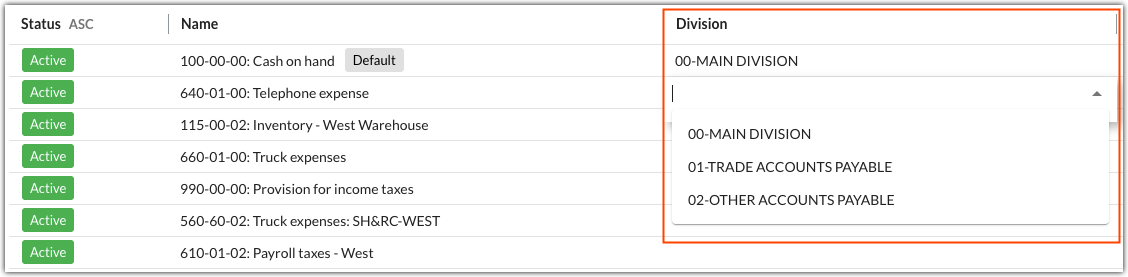
- In the list details, select the list item from the list you created a relationship with. In the example below, when coding the G/L Account list item 101-00-00: Cash on hand, the Division list item 00-MAIN DIVISION will be suggested.
Was this article helpful?
That’s Great!
Thank you for your feedback
Sorry! We couldn't be helpful
Thank you for your feedback
Feedback sent
We appreciate your effort and will try to fix the article