QAP's Invoice module can be used to upload invoice images, code invoices, submit them for approval based on the approval matrix setup, and export invoice data back into the accounting system. If you are not an existing customer and would like to learn more about QAP, please email sales@beanworks.com.
Check out the other modules offered by QQAP:
- Payment Module - pay your vendor invoices or reimburse your employee expenses.
- Expense Module - allow your employees to capture receipts and submit expense reports.
- Purchase Order Module - create purchase orders for your vendors.
Features Supported
Approval Channels. Learn more.
Set coding fields. Learn more.
Smart Code. Learn more.
Pay Later or Do Not Pay. Learn more.
Filters. Learn more.
Statuses. Learn more.
Reports. Learn more.
Add and modify backup pages. Learn more.
Match invoices to single or multiple purchase orders. Learn more.
Duplicate invoices detection. Learn more.
Invoice workflow process
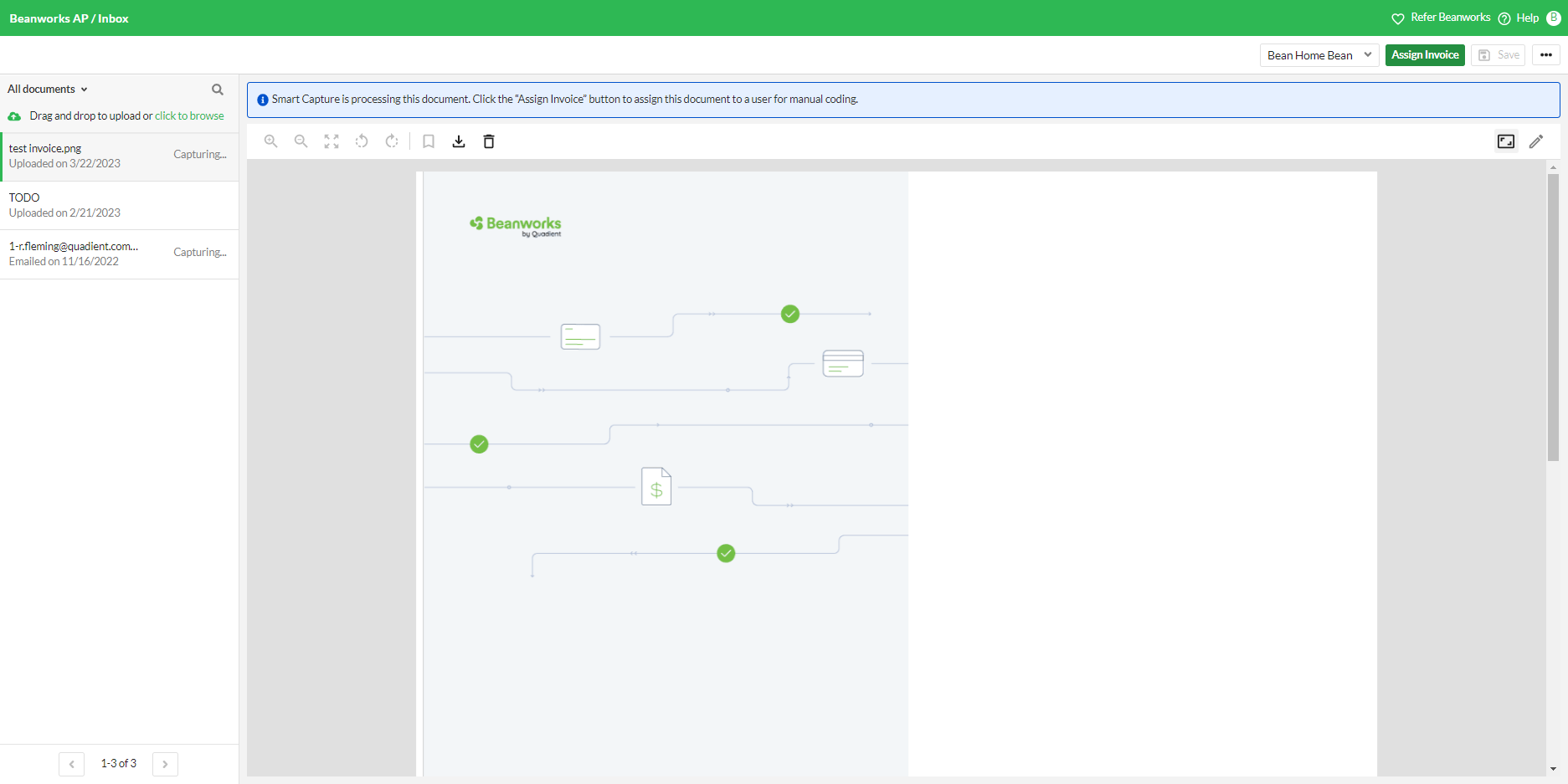
Uploading Invoices to the Document Inbox
The Document Inbox displays all the invoice attachments sent through email or uploaded directly to QAP. By default, invoices in the Document Inbox are captured automatically by either the Auto or Smart Capture features. If you have selected the invoice image to be manually captured, then select the invoice image and click on the 'Assign Invoice' button.
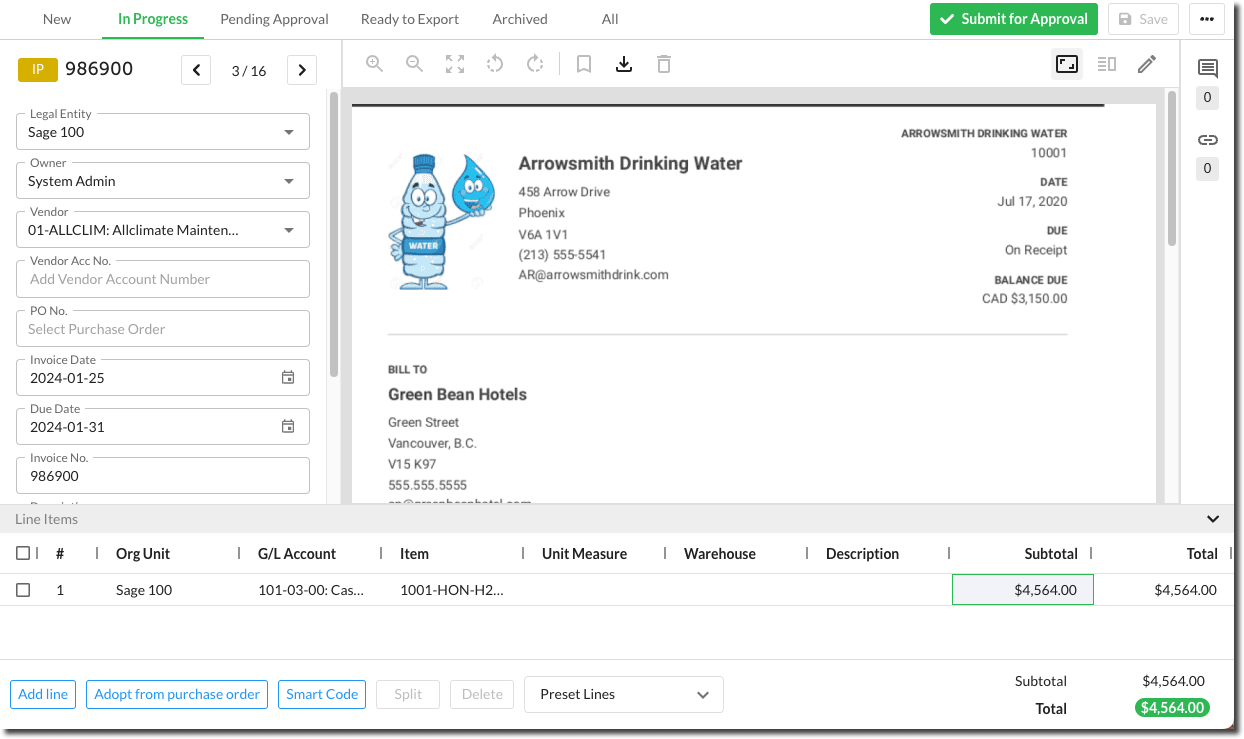
Coding Invoice Details
You can capture the invoice header and line item details. Please note that the invoice header and line item details you see are specific to the accounting system you are using.
Submitting Invoices for Approval
Once you have updated the invoice data, you can submit it for approval. The invoice will hit the approval queue of the approver based on your Approval Channels.

Approving or Rejecting Invoices
The approver will approve or reject an invoice. 
Exporting Invoices
Once an invoice is fully approved, you can export the data into your ERP.

Was this article helpful?
That’s Great!
Thank you for your feedback
Sorry! We couldn't be helpful
Thank you for your feedback
Feedback sent
We appreciate your effort and will try to fix the article